RDS BRIDGEAn FM RDS decoder that runs in your browser.
One HTML file. Download it, double-click it, and it opens in your browser and starts
decoding. There is no installer, no server and no account — and nothing leaves your
machine. It reads the RDS (and RBDS) off an SDRplay receiver through SDRConnect, off an IQ
recording, off the composite MPX from any SDR application, or off a networked
rtl_tcp or SpyServer radio. Hand it a band recording and it will map the whole thing
as a picture, so an opening you slept through is something you can see — and leave it
scanning overnight and it will save you a recording of every station it catches.
New to this? The guide walks you through it with pictures.
Grab index.html from the release. That's the install.
Needs a Chromium browser — Chrome, Edge, Opera or Brave. Firefox and Safari aren't Chromium.
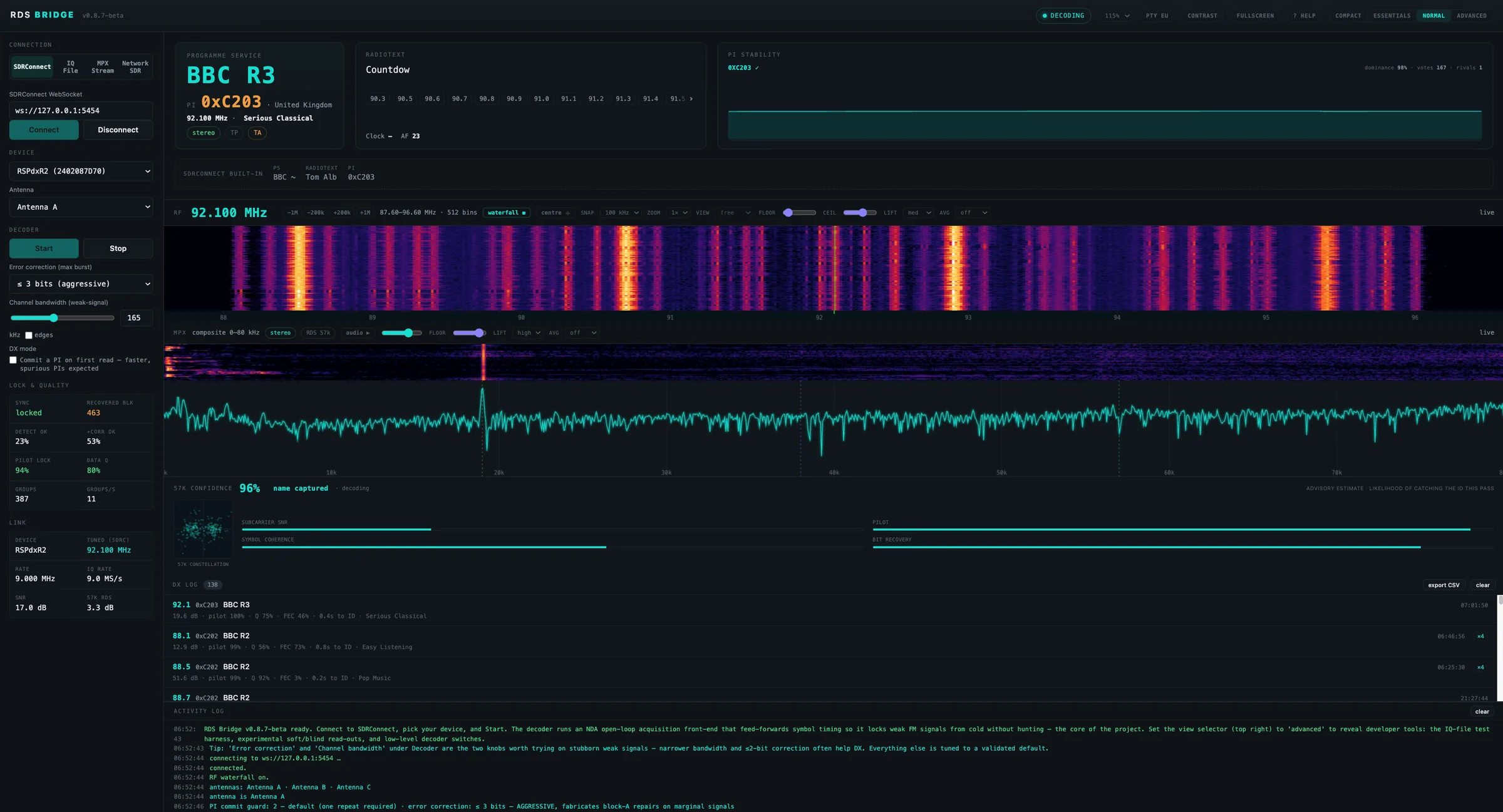
Bridge in Normal view, decoding BBC R3 on 92.100 MHz from an RSPdxR2 via SDRConnect. Tap to enlarge.
What it is
An RDS decoder built for chasing weak signals
Bridge exists because catching a distant station is mostly a race against a signal that
won't stay. It shows the identity as it firms up — programme service, PI, PTY, radiotext,
alternative frequencies — and it shows you how much of that to believe, rather than
presenting a guess as a fact.
The decoder runs an NDA open-loop acquisition front-end that
feed-forwards symbol timing, so it locks weak FM signals from cold without hunting.
That's the core of the project; everything else on the screen is there to tell you
what it's doing.
DX log138exports to CSV
92.10xC203BBC R307:01:50
19.6 dB · pilot 100% · Q 75% · FEC 46% · 0.4s to ID · Serious Classical
88.10xC202BBC R206:46:56 ×4
12.9 dB · pilot 99% · Q 56% · FEC 73% · 0.8s to ID · Easy Listening
88.50xC202BBC R206:25:30 ×4
51.6 dB · pilot 99% · Q 92% · FEC 3% · 0.2s to ID · Pop Music
Every catch is logged with the numbers that let you judge it later — including how long it took to give up its ID.
Four ways in
Whatever your signal arrives on, Bridge decodes it
The four connection modes are the tabs down the left of the window. Pick the one that
matches your setup — everything to the right of them works the same way.
SDRConnect
Straight to the radio
Bridge talks to SDRConnect over its WebSocket API on your own machine. Choose the
device and the antenna, tune from the page, and watch the RF waterfall across the
band. Bridge's decode sits alongside SDRConnect's own built-in RDS in the same
window, so you can see the difference for yourself.
Best for: everyday DXing at an SDRplay RSPdx or RSPdxR2.
IQ File
Work the band after the event
Load an IQ recording and decode it as though it were live. The opening you recorded
at three in the morning can be worked properly at the weekend — one frequency at a
time, as many passes as you like, with the settings you wish you'd used. Or
map the whole recording first and go straight to what was there.
Best for: post-processing band recordings; testing settings against a signal that never changes.
MPX Stream
Bring Bridge to the radio you already use
Feed Bridge the composite MPX from any SDR application through a virtual audio cable
— SDR Console, SDR++, whatever you run — and it decodes the 57 kHz subcarrier out of
the composite. The helper can tell Bridge what frequency you're tuned to, so the log
comes out right.
Best for: a receiver or an application Bridge doesn't talk to directly.
Network SDR
A radio in the loft, a decoder at the desk
The helper connects to an rtl_tcp or SpyServer source on your network and streams the
IQ to Bridge. With SpyServer it also relays a wideband FFT, which Bridge paints as
the RF waterfall. rtl_tcp doesn't offer one, so you get the decode without the
waterfall.
Best for: an RTL-SDR in the loft, or a SpyServer that isn't next to the computer.
Recordings, mapped
See a whole recording at once
A band recording holds far more than you heard while it was playing. The band map turns one into a
picture — time running down the page, channels running across, each cell showing how far that channel
stood above its own noise floor at that moment. A two-minute opening on 90.7, half an hour in, becomes
something you can see rather than something you had to be listening for.
Build
Seconds, not a re-listen
The map samples the file rather than reading it end to end, so even a very large capture maps
quickly. A 66 GB, 32-minute, 9 MHz recording built a 91-channel by 396-row map in about 1.4
seconds on an Apple Silicon Mac mini — that machine's figure, not a promise about yours.
Best for: finding out what is actually in a recording before deciding how to work it.
Click
Straight to the moment
Click any cell and the recording seeks to that time, tunes that channel and starts playing with
the audio armed. A playhead marks the time you're at and the channel you're on, follows the
playback, and gets out of the way as soon as you scroll off to read the map.
Best for: working the lit cells one at a time instead of hunting for them.
Loop
Another go at a marginal signal
Mark a start and an end and loop that stretch of the recording, with the looped section drawn on
the map. Each pass starts a fraction of a second later than the last and works through a short list
of channel bandwidths, so every lap is a genuinely independent attempt rather than a rerun — and
the station assembles across them, character by character, at the strength of its evidence.
Best for: a station that nearly identified itself and then faded.
Your DX log, on the map. Catches you already made from that recording appear as rings — so a bright column with no ring is something you haven't identified yet.
The capture roll-off is marked, not trimmed. Channels out at the edges of the recording are real and worth checking. They read low, which is not the same as being empty.
It's a presence map, not a signal meter. Brightness is measured against each row's own noise floor, so the shades don't compare between one recording and another. It answers “was anything here?” — identifying a station still means playing it.
IQ File mode only. Building the map means seeking around a file, which a live stream can't do.
Work the whole band
Let it find the stations for you
In SDRConnect mode Bridge can sweep the FM band on its own. It reads the carriers off the
RF spectrum, tunes each one, and logs the ones that actually decode RDS — through the same
PI commit guard as everywhere else, so a scan can't invent a station. Catches stream into
the DX log as it goes, strongest first.
Full band
One pass, everything logged
Sweep the band once from 87.5 to 108 and log every station it finds. The quickest way
to see what's actually on air right now, without touching the dial yourself.
Best for: a snapshot of the whole band, or checking an opening as it builds.
DX watch
Loop the band, chase what's new
Sweep the whole band on a loop, skipping your skip-list, your locals and the channels
it has measured as empty — so each pass spends its time on what's changing. A channel
that shows a pilot is never set aside, and neither is a signal you've already caught.
Best for: leaving it running through an opening to catch stations as they surface.
Watch list
Keep an eye on your spots
Rapid-loop just the frequencies you name — the clear DX spots you want checked often —
with the odd full-band sweep folded in so you don't miss an opening somewhere else.
Best for: monitoring a handful of known frequencies for the moment a distant station comes up.
It can save you the audio, too
Point the scan at a folder and tick one box, and every station it identifies gets a short WAV
written into it. The scan keeps listening for a few seconds after the catch, so what you get is
the station saying its name rather than the instant its PI decoded — and one clip per station per
scan, so a night's worth is the number of stations you caught, not the number of channels it
checked. Your speakers stay off if they were off.
And it can work each of your antennas in turn
If your SDRplay receiver has more than one antenna port, Bridge will remember what each one needs —
its RF gain and its spectrum scale — and put those settings back whenever it switches to it. Tick two
or more ports and a scan sweeps each in turn: a looping scan cycles round them, a full band sweep does
one pass on every antenna and stops. Every catch is logged against the port that heard it, and clips
are written per port, so you can compare the same station on both. Each port keeps its own record of
which channels were dead, so a channel written off on one antenna is still checked on the others —
that is the whole point, and it means early passes take longer than a single-antenna scan.
One thing Bridge can't do: SDRConnect's interface doesn't let any application
read or set the IF gain, so that one is yours to set. Bridge shows you what each port would ideally
have and tells you when you've switched to one that wants something different. In practice one IF
setting that suits all your ports is the simplest arrangement.
The scan needs a live SDRConnect stream with hardware control,
because it tunes the radio for you — press Start first. The
decoder is the detector: every catch is a real RDS decode through the normal commit
guard, never a guess from the spectrum.
A persistent skip-list. Keep the scan off your locals for good — type frequencies in, tick “skip” on a DX-log row, or add every catch at once. It's remembered between sessions.
It learns as it goes. Channels the scan measures as empty are set aside for a while, so a loop spends its time on what's changing rather than on empty air. A channel that shows a pilot is never set aside — a carrier that didn't give up RDS this time is exactly the marginal DX you left the scan running for — and every channel comes back up for another look after fifteen minutes, so the list settles at a working size rather than growing. When a scan is working several antennas, each port keeps its own list: a channel that was dead on one antenna is still worth checking on another.
See exactly what it's doing. An optional verbose log shows every channel the scan checks and what it decided — logged, empty, held for another look, or skipped.
On screen
What Bridge shows you
The same read-outs in every mode. Five display densities — Compact, Essentials, Pano, Normal and Advanced — so you can strip it back to the identity, watch a whole band, or open the whole instrument up. Dark or light, whichever you read more comfortably.
IdentityProgramme service, PI, PTY, radiotext, alternative frequencies, TP/TA and clock time.
PI stabilityDominance, votes and rivals, so you can see how settled an ID is before you log it.
CountryShown once the ECC actually decodes — never guessed from the PI.
RecordingOne press writes what you are hearing to a 48 kHz 16-bit WAV, in every mode — and it works with the speakers off, so an unattended overnight session records silently. Pick a folder once and every catch goes straight there.
DX logEvery catch with SNR, pilot, quality, FEC and time-to-ID. Exports to CSV, and a delete or a clear can be undone — even after a reload.
Band mapA whole IQ recording as a frequency-by-time picture, with click-to-play, a playhead and section looping.
Self-checkOne button that tests your browser, confirms your copy is complete and unmodified, and proves the decoder works on a synthetic signal — then writes a plain-language report you can read or send on. Nothing is sent automatically.
DisplaysRF waterfall, MPX composite spectrum and the 57 kHz constellation, live.
Light or darkThe interface switches between a dark and a light theme and remembers which you chose. The waterfall, the MPX spectrogram and the band map stay dark in both: those are signal painted through a colour map, and a light colour map is harder to read, not easier. A separate control lifts the dimmest labels further again, in either theme.
Pano viewThe identity cards over a full-height RF waterfall with adjustable time-depth — a band-watching layout for spotting openings.
Weak-signal knobsError correction depth and channel bandwidth — the two worth trying on a stubborn signal.
Channel spacingAuto, 50, 100, 200 or 250 kHz raster. 250 kHz reaches the quarter-MHz stations used in Thailand.
DX modeCommit a PI on the first read. Faster, and spurious PIs are expected — it's there when you want it.
Lock & qualitySync, pilot lock, data quality, recovered blocks, groups per second, subcarrier SNR.
Optional companion
The helper
Two jobs a browser tab can't do on its own. You only need it for MPX Stream and
Network SDR — SDRConnect and IQ File don't use it at all. It's in the same release
as Bridge, so you're already in the right place.
Tells Bridge where you're tuned. Your SDR application knows the frequency; Bridge doesn't. The helper passes it across so MPX Stream logs the right frequency.
Streams IQ from a networked radio. It connects to rtl_tcp or SpyServer and hands the IQ to Bridge to decode.
One small program, no installer. A single file for Windows, macOS (Intel and Apple Silicon) and Linux. Run it, and it opens its own settings page in your browser.
It never touches the decoder. The helper carries data to Bridge; the decoding all happens in the browser.
Take both from the same release. Bridge and the helper are a matched pair. Mixing one release's helper with another's Bridge won't raise a polite error — it will just decode nonsense, so don't.
Windows, macOS (Intel and Apple Silicon) and Linux. macOS needs one extra step the first time you run it; the release notes have it.
Setting it up: the guide has step-by-step walkthroughs for MPX Stream and Network SDR.
Before you download
What this is, and what it isn't
Bridge is a hobby project made by an FM DXer for FM DXers. It is not a commercial
product and it isn't pretending to be one.
It needs a Chromium browser. Chrome, Edge, Brave or another Chromium build. Firefox and Safari aren't Chromium and won't run it — worth knowing before you download.
It's experimental, and it changes. Development is ongoing and often quick. Features arrive, get reworked, and occasionally get taken back out again.
There's no warranty, express or implied. It's offered as-is under the MIT licence. If it misbehaves on your machine, that's the deal you're getting for free.
No support contract, no promised roadmap. Bugs and ideas are welcome and often get acted on, but nothing here is a commitment and nothing has a date on it.
Free, and it stays that way. No cost, no account, no telemetry. Nothing phones home. The whole source is on GitHub — read it before you run it if you like.
It decodes as fast as your machine can decimate. On a wide recording, a slower machine may not keep up with real time — Bridge measures it and tells you when that happens. The decode itself is unaffected either way; it's the audio that stutters, not the RDS.
Get in touch
Questions, catches, and bug reports
If you're using Bridge to chase signals, I'd like to hear about it — especially when it doesn't work.